Save time in your content process by transcribing your handwritten text into digital text.
There are those of us out there who still handwrite content pieces or even meeting notes. I love handwriting, but I don’t always love the time it takes to type it all up.
AI tools are great for transcribing handwritten content so that you can save a little bit of time in the content process. Here’s how you can do just that.
Step 1: Capture handwritten text
Use your phone’s camera to take a photo of each handwritten page. You can do this in your phone’s camera app or directly in the app that will do the transcription (e.g., Claude; skip to step 3 if that’s the case).
You can also use a scanner app (e.g., Adobe PDF). This will flatten the image and make the text sharper; this can help with bad lighting or harder-to-read handwriting.
Step 2: Transfer image
If you’ve used the transcription app to take the photo, you can skip this one.
If the transcription app is on your phone, share the photo from your camera app to your transcription app. For example, if you use Claude, share the photo with the Claude app, which allows you to access the chat via phone or desktop.
Otherwise, share the photo with your:
- Email: send it to yourself.
- File repository: save the photo directly to Google Drive or Microsoft OneDrive (iManage and NetDocs work, too).
- Documents: create a document (Docs, Word) and drop the images into it.
- Chat app: send to yourself through Slack, Teams, Facebook Messenger, even LinkedIn messages.
- App with AI function: e.g., Notion, Airtable, ClickUp.
The point is to save the images in a spot where you can retrieve them.
Step 3: Get it translated
If the image was sent via email or chat app, save the image to a known location.
First, ensure you’ve got the image file path handy. Then head to your transcription app to upload the image with a prompt.
The prompt you give is going to vary slightly depending on the type of AI tool you’ve got.
Transcribe the text from this image. Flag any words that you aren’t certain about.
If you need the document generated for you, edit the prompt slightly:
Transcribe the text from this image and drop the transcribed text into a [Word or Google] document. Flag any words that you aren’t certain about.
Then you can download the document file, save it somewhere, and edit the content.
If you have Claude Desktop, you can have the tool generate the document for you, which will save you another step. Claude can create Google Docs, Word documents, or add pages/records to Notion, Airtable, and ClickUp.
To create a document in Google Drive or Microsoft OneDrive:
Transcribe the text from this image. Put the text in a [Google Doc or Word document] and save it to [a specific file location]. Flag any words that you aren’t certain about in this chat.
Adding pages/records to Notion, Airtable, and ClickUp work the same way, but each tool has its own nomenclature.
In Notion, you create pages. In Airtable, records. And in ClickUp, you can create a task or document.
Notion, Airtable, and ClickUp have their own AI tools, so instead of doing the transcription in an AI tool like Claude, use the tool’s internal AI function.
Let’s take Notion, for example. The scenario: you’ve saved the photos in a Notion page.
- Open up the page that holds the photos.
- Click on Notion’s AI icon
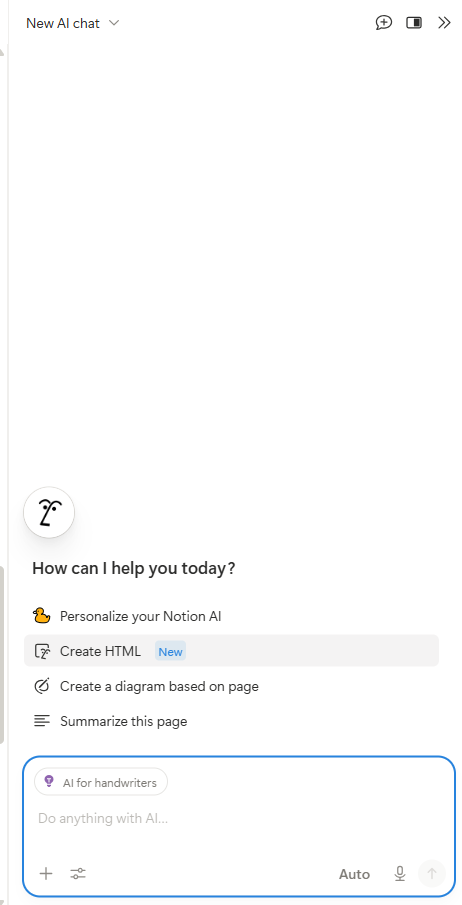
- Enter the prompt:
Transcribe the text from this image and paste the text into the page (keep the image for reference). Flag any words that you aren’t certain about in this chat.
Keeping the image is going to make it easier for you to compare the image text to the transcribed text.
Bonus Points
If you want to use AI beyond transcription, incorporate other prompts with your transcription prompt and cross a few things off your list in one swoop.
Title prompts:
- Give the page/document a title based on the text.
- Provide 5-10 title suggestions; include one in a question format.
- Suggest SEO- and AIO-friendly titles based on this text.
Grammar check prompts:
- Identify any grammatical errors based on [a particular writing style].
- Fix spelling, punctuation, and capitalization.
- Flag any inconsistencies in the text.
Excerpt prompts:
- Identify the post’s most important points and provide suggested excerpts based on those points. Keep the excerpt to 120 to 160 characters.
- Write a meta description under 160 characters.
Content improvement prompts:
- Identify the main topic, supporting points, and any tangents.
- Identify where this idea needs more explanation.
- Suggest examples I could add to make this more useful.
- Point out any places where the reader may need more context.