Read Part I of this series before proceeding.
Part I explained the thought process behind and benefits of using Claude’s Notion MCP for context documentation. In Part II (this article),
In order to make this work, you need:
- a Notion account, and
- to have already set up your MCP through Claude Desktop
How you choose to set up your Notion files is totally up to you. From here on out, I’ll be using the way I set it up as an example. There’s really no right or wrong way to do this, and whatever you set up should make your workflow easier.
Structure Setup
I’ve already got a lot of information in my Notion account, so I created a new space for Claude documents (I have the paid version of Notion, so I created a new teamspace). My thought is that I didn’t want Claude to waste resources reading files that don’t have relevance, so I have a section called “Claude Hub.”
Under that, I have a section for each one of my roles. It helps to mirror Claude Projects that already exist.
Notion’s hierarchy is basically a site tree, so organization of content is easy. The cool part is that each level is a page with functional blocks, so not only can I stack and organize pages, I can explain those sub-pages in the main page.
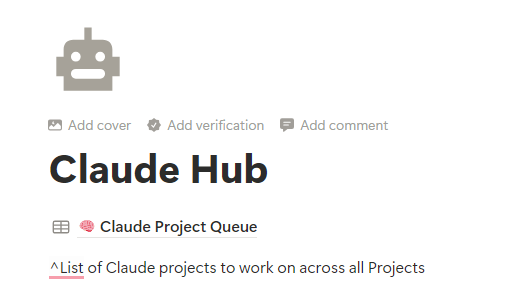
Under my Claude Hub, I have a single database I use for a project/task queue (more on that in Part III). As you can see here, I added text to explain what it is.
Also under the Claude Hub parent are sections for each project. I treat the project parent as a table of contents to the actual project information. Some are basic links with short descriptions, others are highlighted to be used with every instance or key documents with more detail.
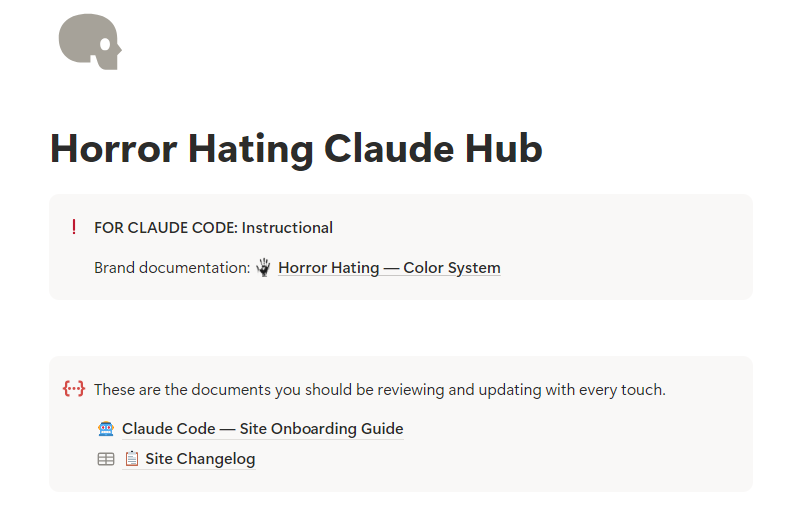
Below is the setup for one of my websites (where I catalog the horror genre). I use the functional blocks to create important sections for Claude to read: brand guidelines, an onboarding guide, and the site’s changelog.
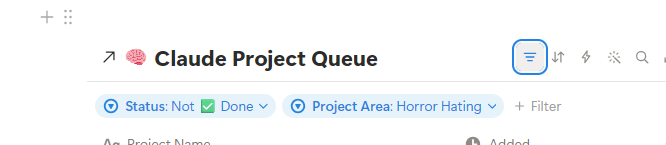
I also embedded the Claude Project Queue database here, but filtered by the Project Area, so Claude knows which projects/tasks to work on within this area. Notion allows you to take a database from a different location and display whatever view/filters you so choose. So in this example, I’ve filtered the queue list by the Project Area (Horror Hating) and Status (tasks that aren’t complete).
Direct, don’t dump
You don’t want to waste time or energy having Claude (or you) sort through a ton of information. Think of this setup as a true hierarchy. Essentially, you’re setting up a trail for Claude to follow so Claude can follow the logic of the hierarchy to find the right information for the task at hand.
Or put another way, create a roadmap. “If we’re working on X task, then start here.” For more information, go here for instructions, do this every time…use those setups to lead Claude on a path for relevant information. Do not just “data dump” context in one place – think about what Claude needs to know and when.
Using the Notion Claude Hub
Once you’ve set up your system (see Part III on my recommended Notion setup), here’s how you can use it:
- For Claude Projects, add the Notion link for that particular project to your instructions. This essentially takes the place of the desktop .md context files.
- For specific projects/tasks/workflows, drop the URL in a new Claude chat to get it up to speed quickly.
- Reference research summaries or other documentation for context
In the next part of the series, I’ll explain my Notion Claude Hub setup and how it’s incorporated into my workflow.
Read Part III: recommended context pages for your Claude Hub